
AtriumKit in two minutes
A tour of AtriumKit, made with AtriumKit: record in Chrome, edit with AI, share, and see who watched.
https://www.atriumkit.com/g/xsdf6e/atriumkit-in-two-minutes
Hi there, meet AtriumKit
This is an AtriumKit demo of AtriumKit: real screens from the app, recorded in Chrome. Take the whole tour, or pick a stop.
- Take the whole tour → go to step 1
- Editing and AI → go to step 4
- Sharing and leads → go to step 11
- Analytics and more → go to step 15
If you chose “Take the whole tour”
Step 1: Hit record in Chrome
Pick a guided tour or a clickable sandbox, then use your product as usual. Every click becomes a step.
Step 2: Personal data stays home
The recorder blurs emails and other personal details before a screen leaves your browser. See?
Step 3: Open a demo
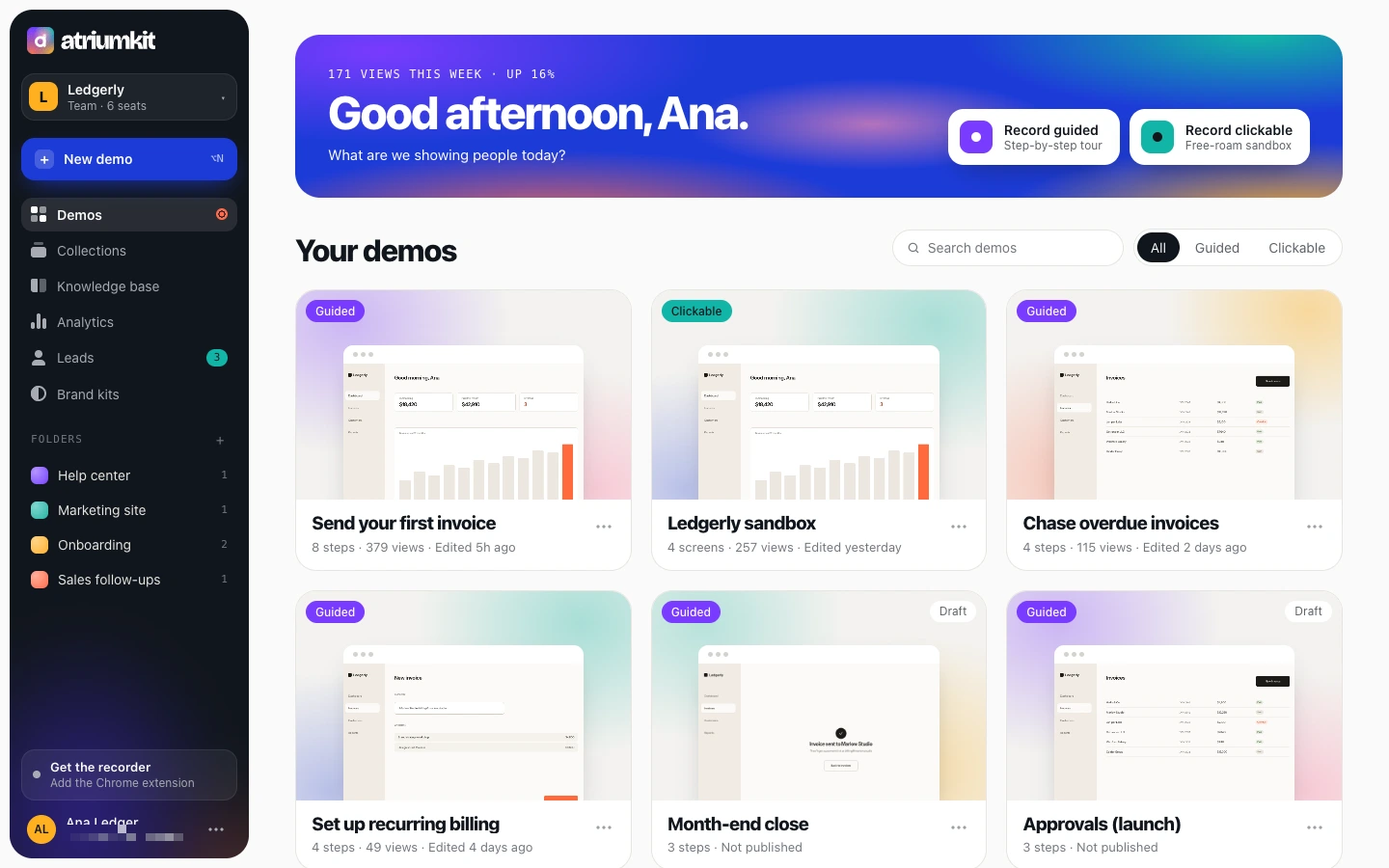
Ana recorded this tour of Ledgerly, her invoicing app. Click it to open the editor.
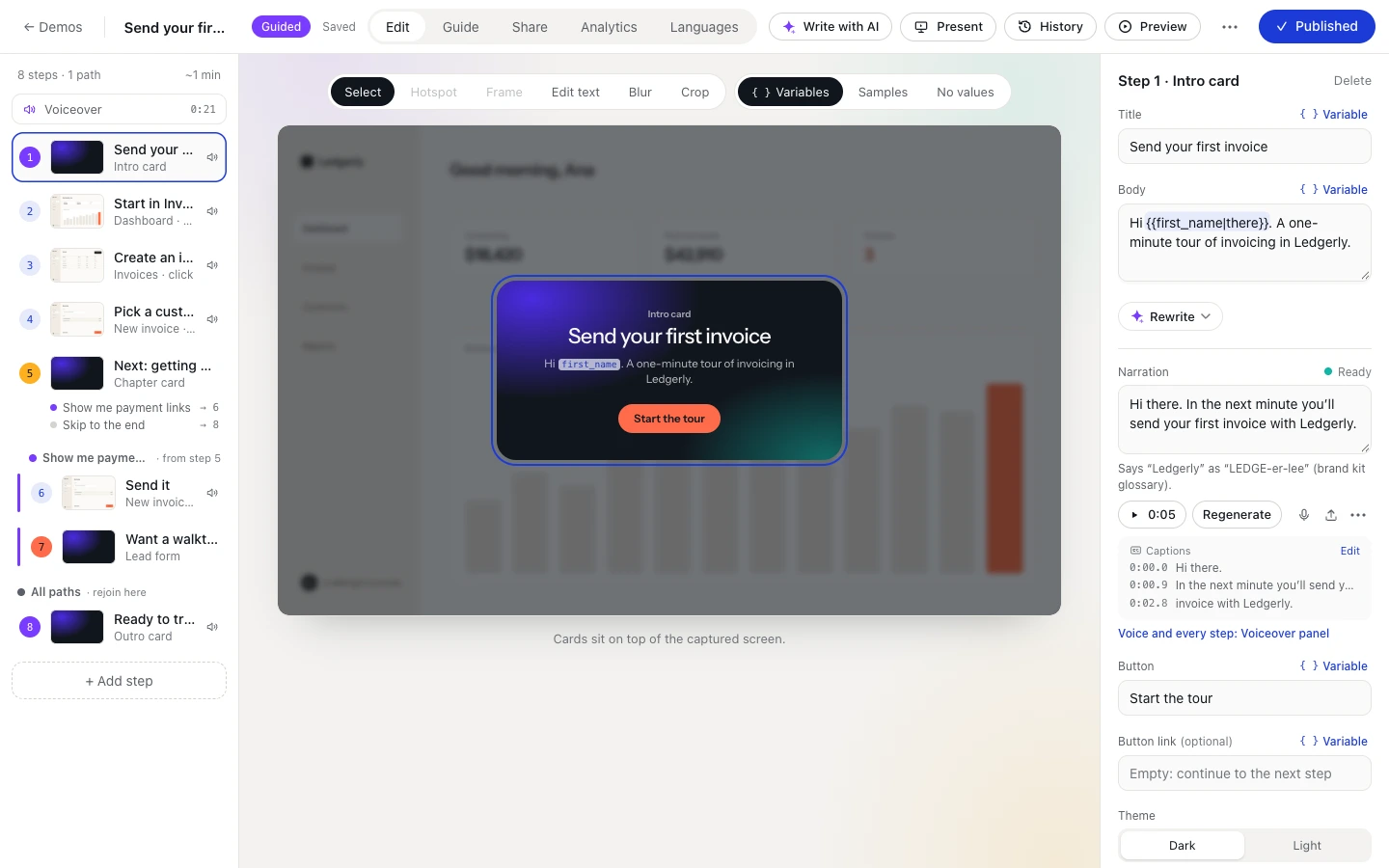
Edit it like a doc
Rewrite, rearrange, personalize, voice and translate. You never record twice.
Step 4: Steps arrive already written
Tooltips are drafted from your clicks. Reorder them, or add chapters, choices, lead forms and calls to action.
Step 5: Make it personal
Variables fill in each viewer’s name and company from a personalized link, your site or a form. That’s how this tour said hi.
Step 6: Give it a voice
Write a line per step and an AI voice reads it, with captions, saying your product’s name the way you do.
Step 7: Fix the page, not the tooltip
Every screen is a real web page: change text, blur, hide or swap images right on it. No re-recording.
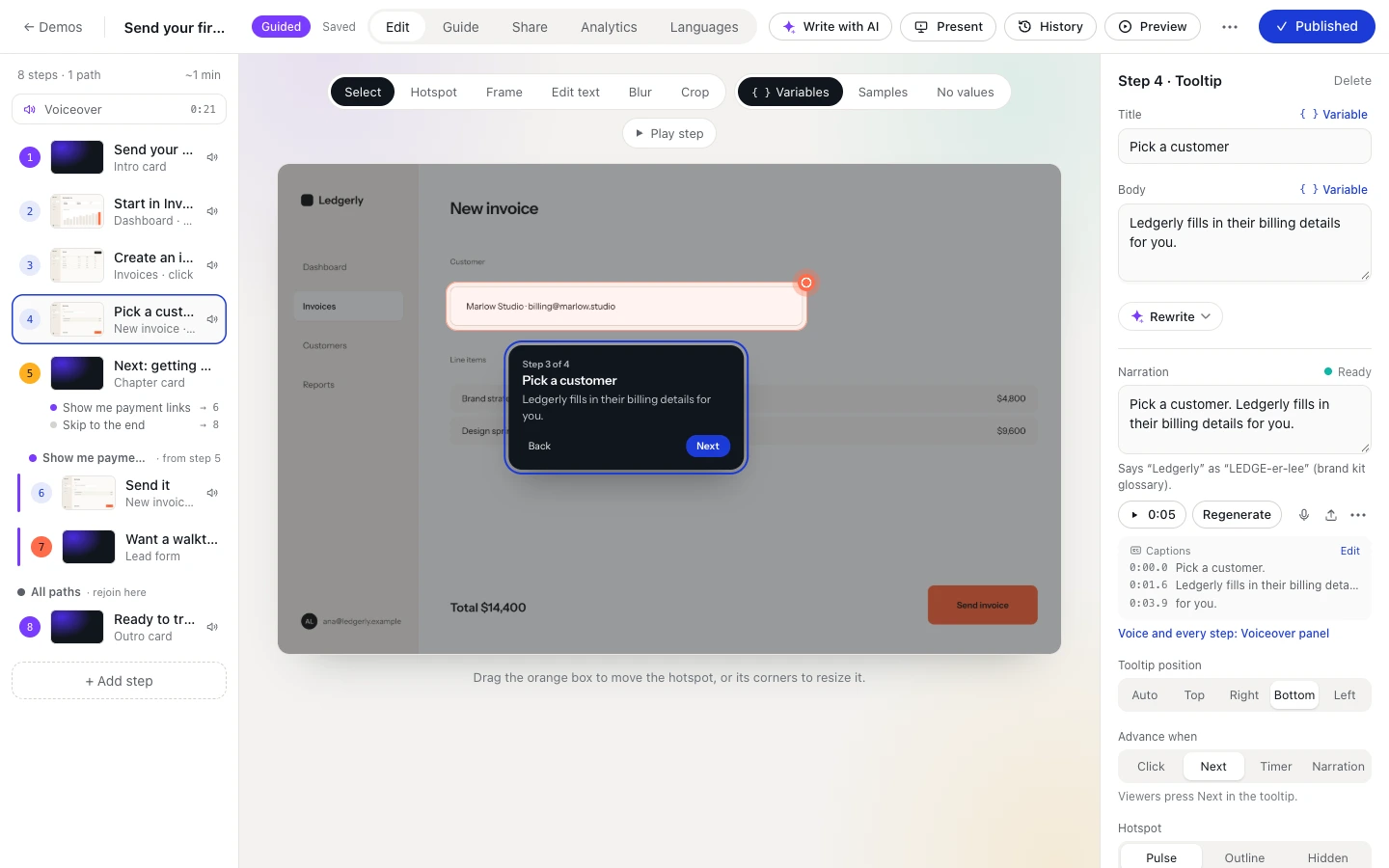
Step 8: Point at what matters
Each step can zoom to its spot, with an animated cursor and the rest of the page dimmed. Like this tour.
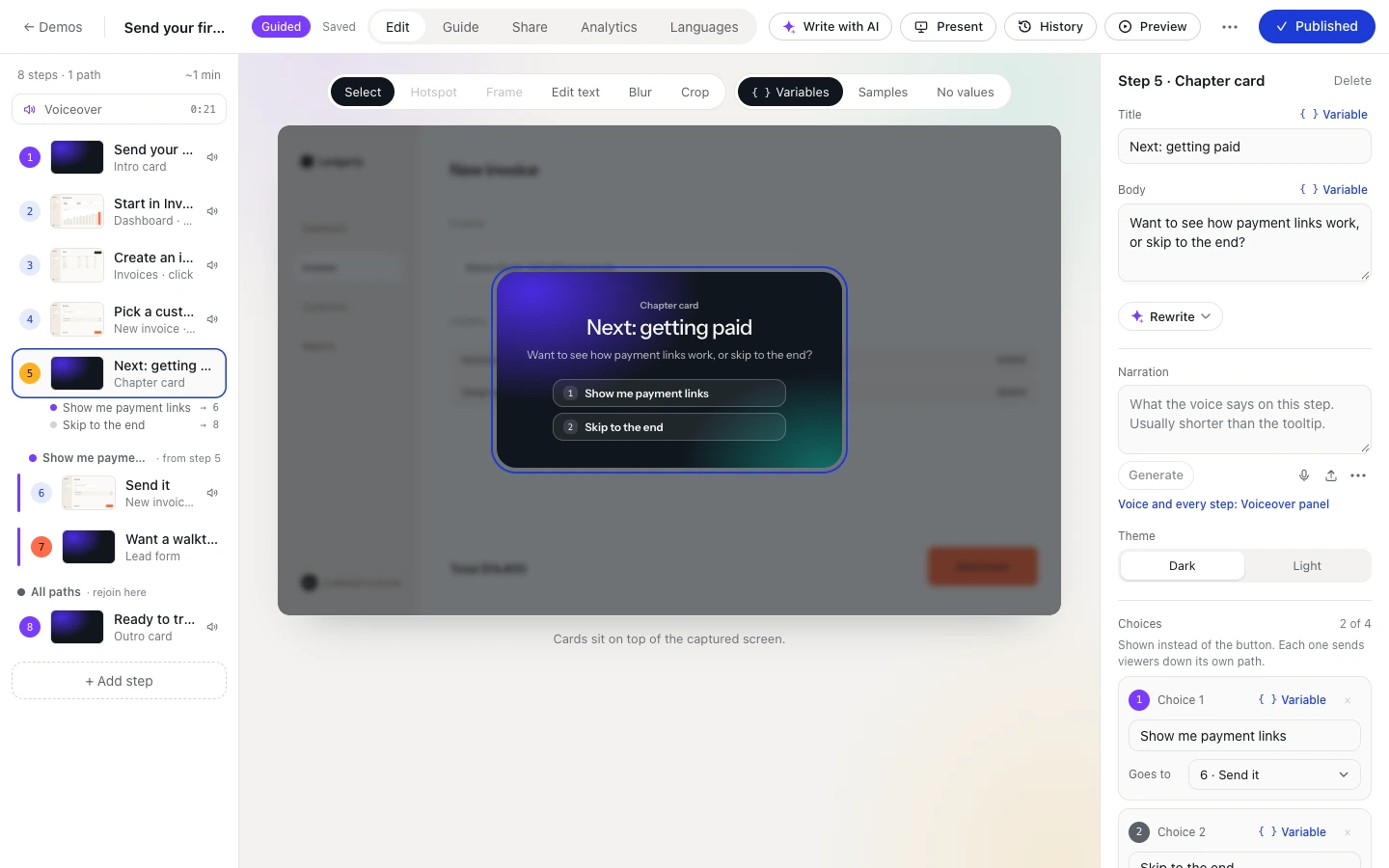
Step 9: Let viewers choose
Give a step a few choices and each path plays on its own, like the menu at the start of this tour.
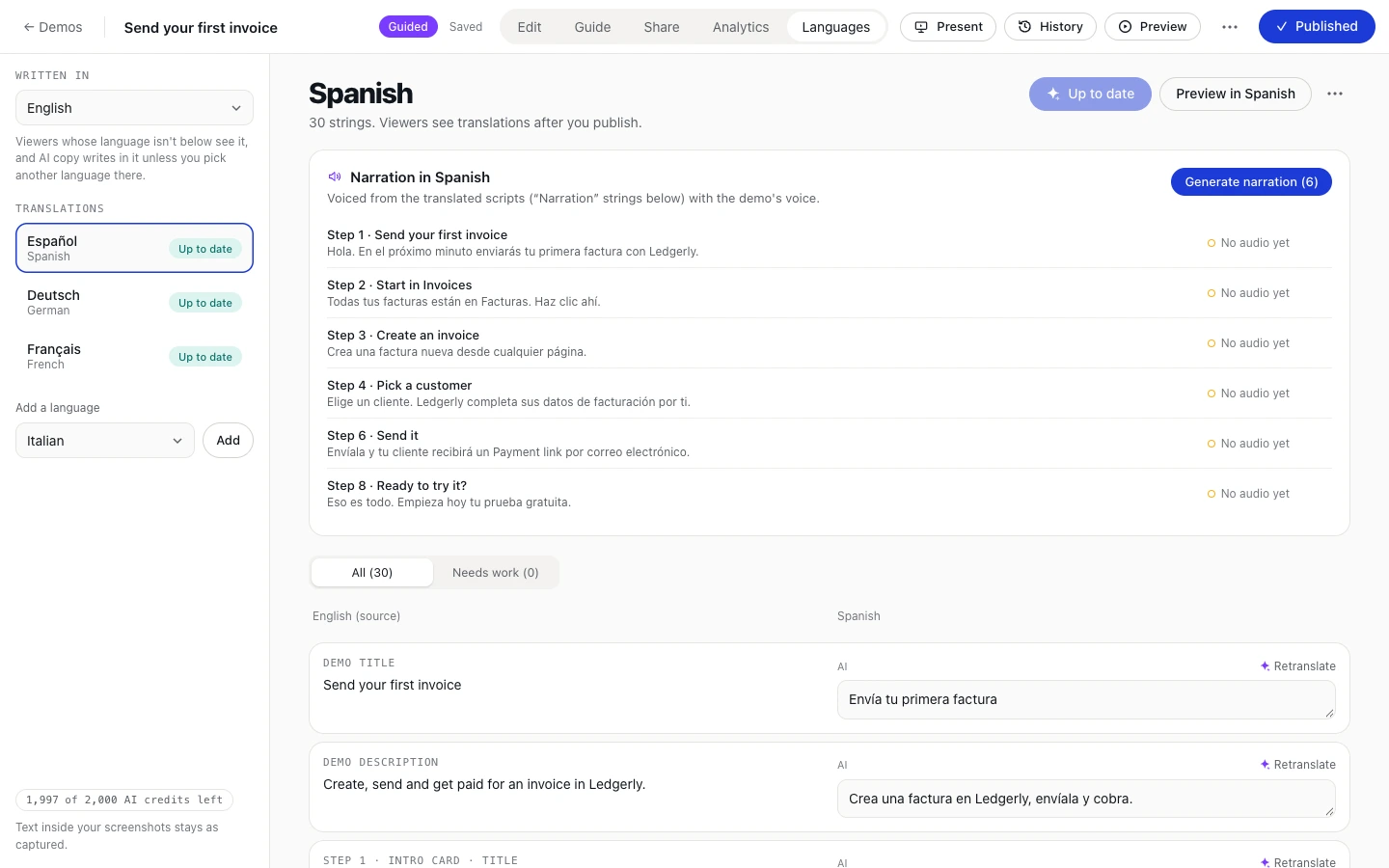
Step 10: Speak their language
Translate every tooltip and the voiceover into 14 languages with AI. Viewers pick theirs in the player.
Share it anywhere
A link, an embed and a written guide. Every edit goes live everywhere at once.
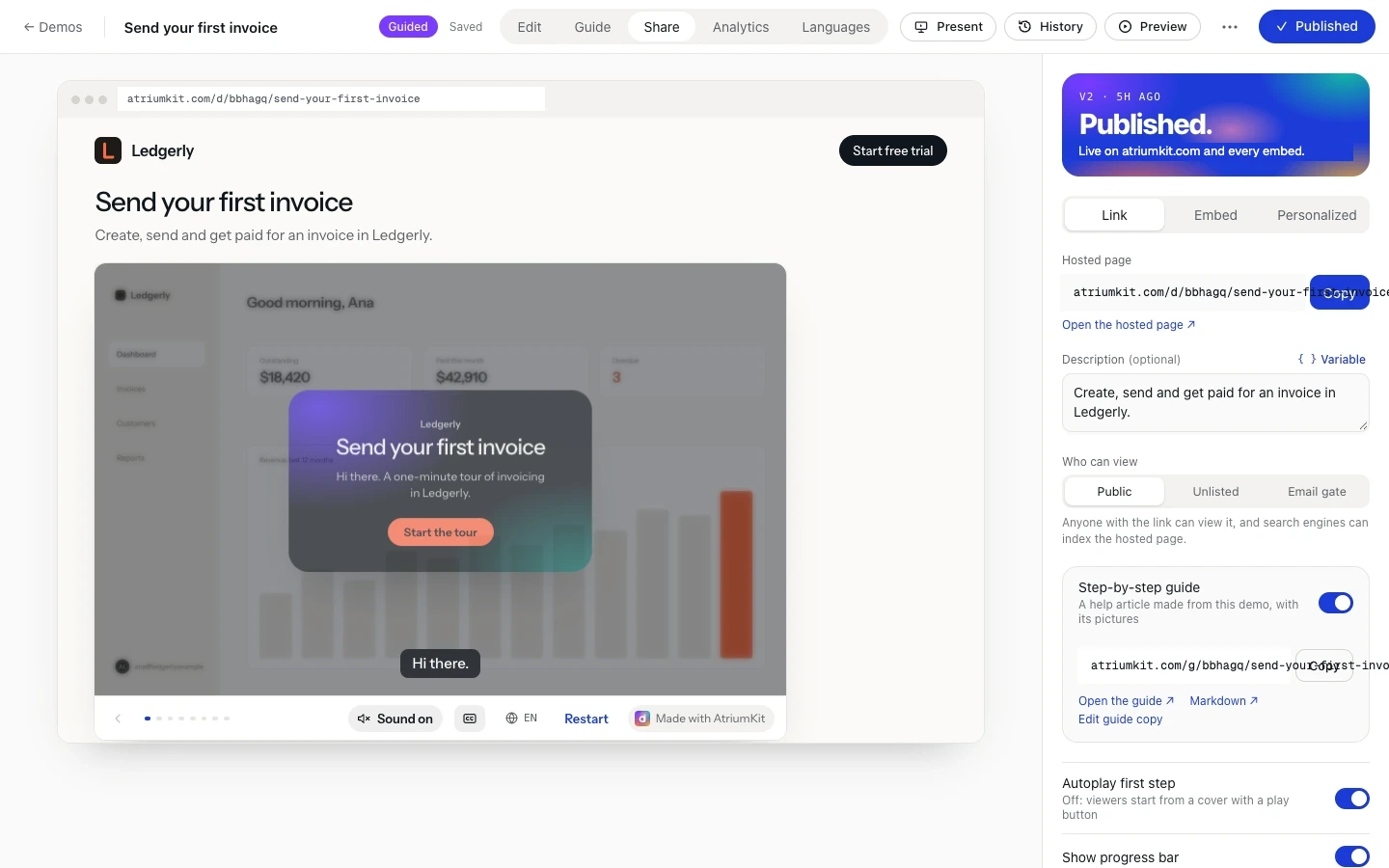
Step 11: Publish once, share everywhere
Send the hosted page, or paste the embed into your site, docs or help center. You’re in one now.
Step 12: Turn viewers into leads
Ask for an email before the demo starts or right before the last step, or add a lead form anywhere.
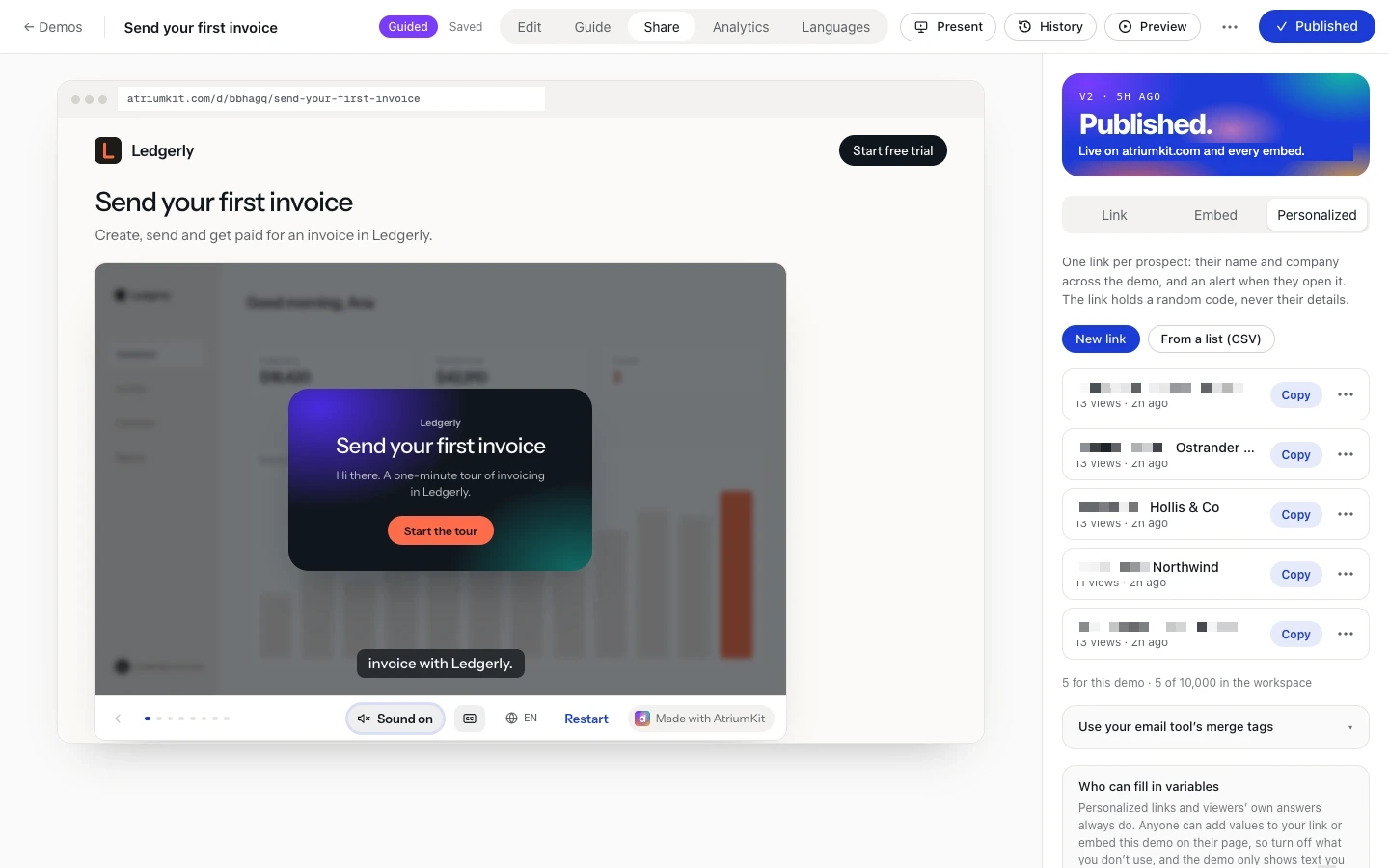
Step 13: A link for every prospect
Personalized links greet each prospect by name, and show you who opened theirs and how far they got.
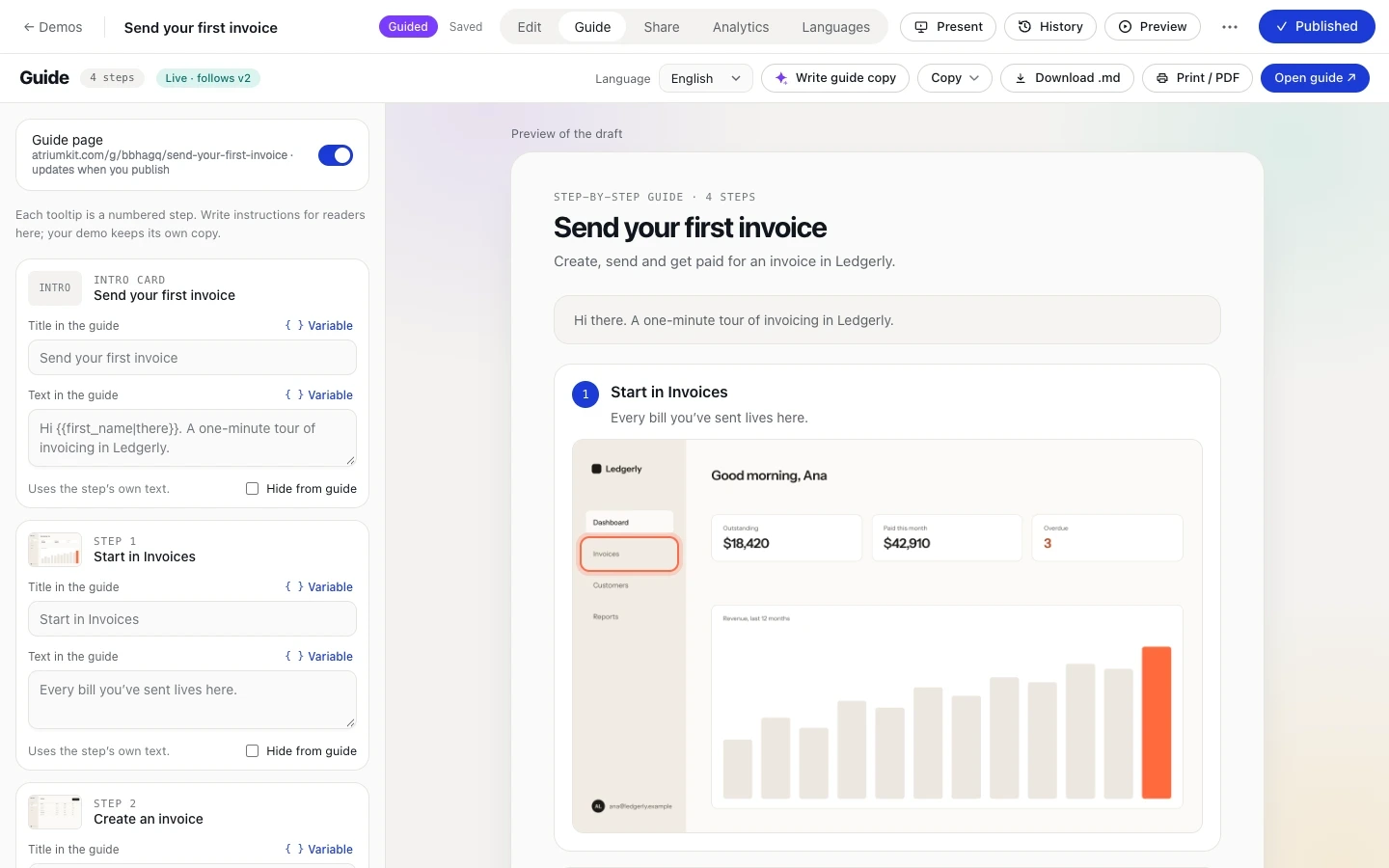
Step 14: It’s a written guide, too
Every demo doubles as a step-by-step article with screenshots: paste it into Notion or Docs, or export Markdown and PDF.
See what happens next
Views, drop-offs, choices and leads, per step and per viewer.
Step 15: Find where people drop off
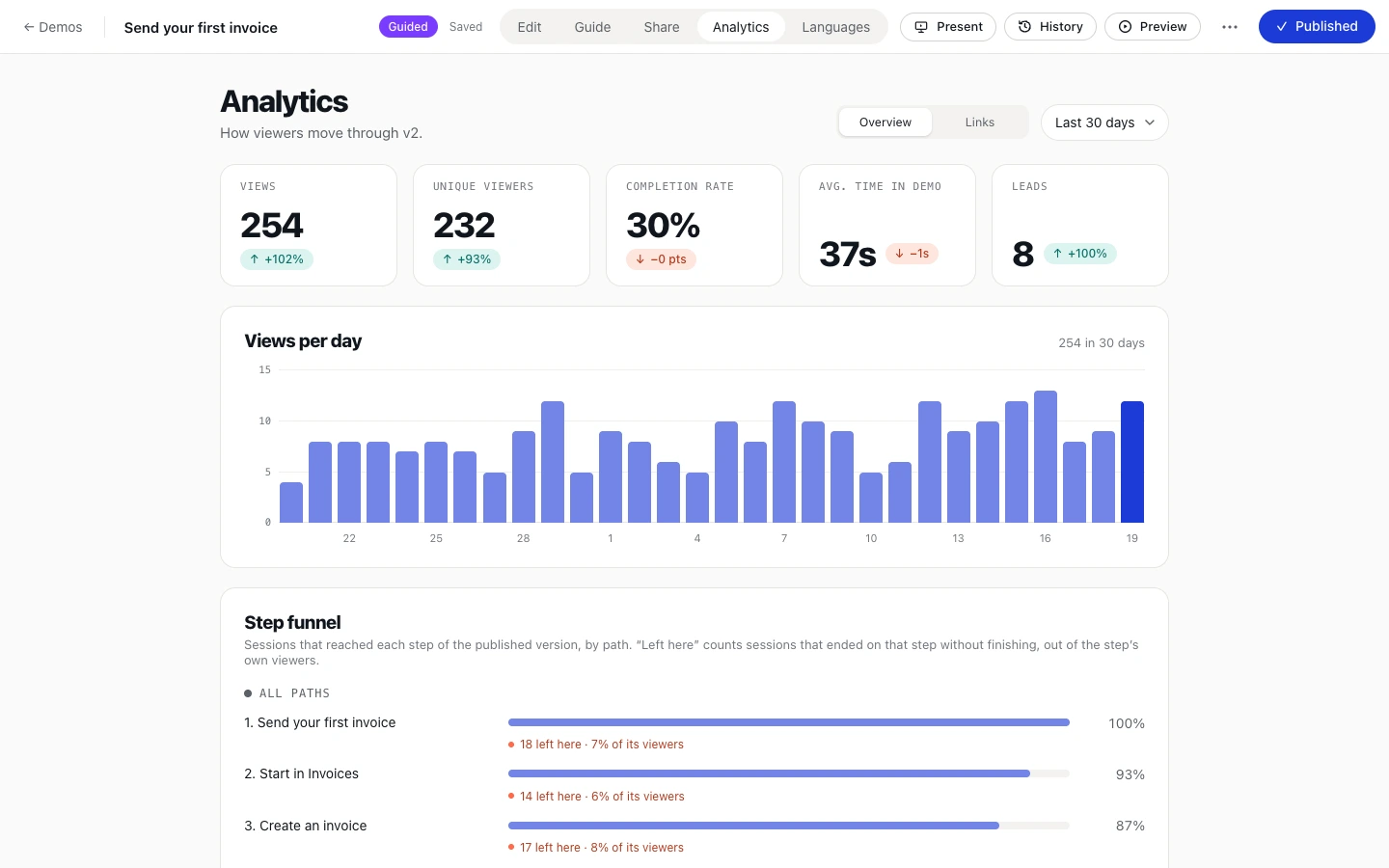
Views, completion and time watched, plus a funnel that shows exactly which step loses people.
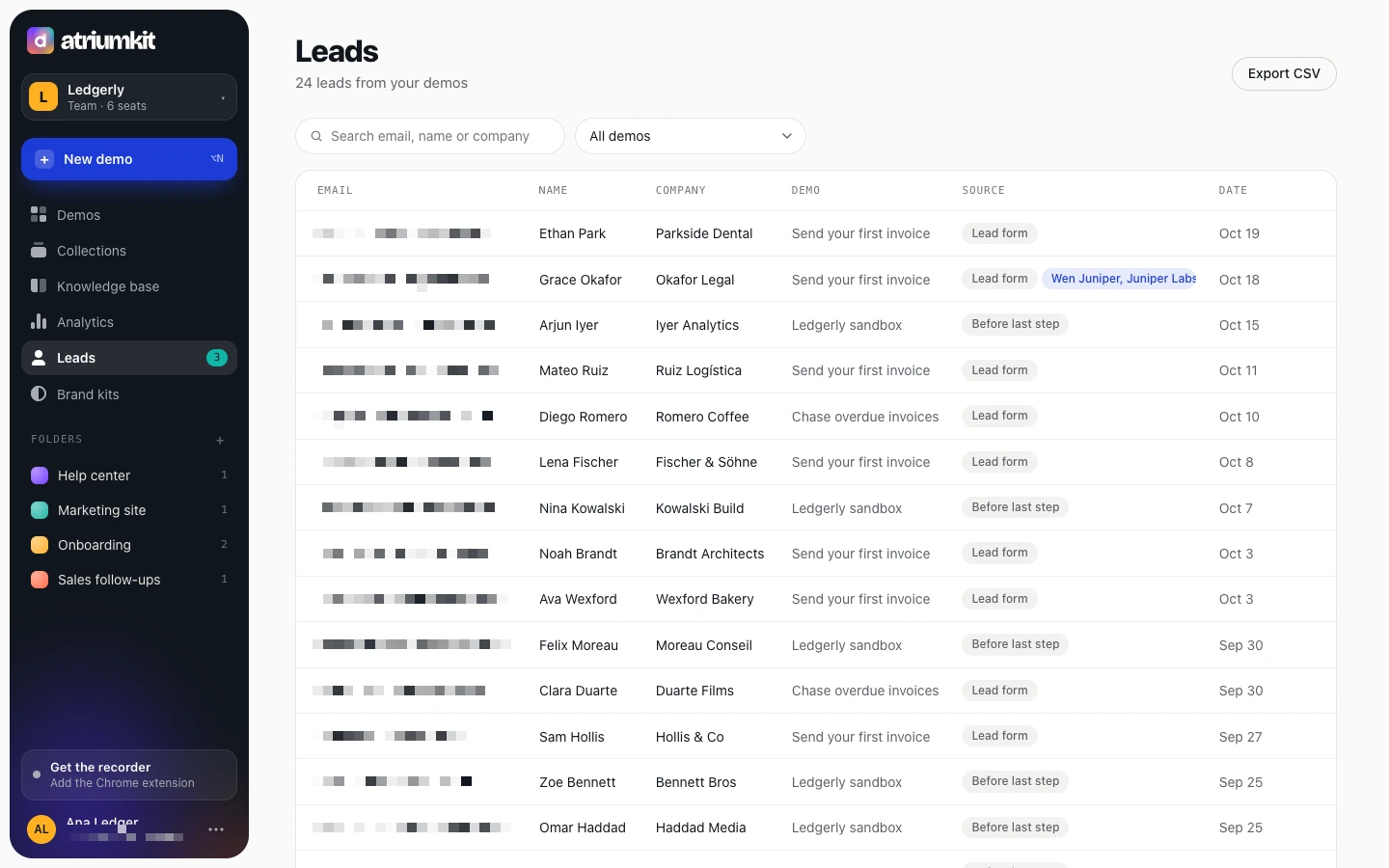
Step 16: Every lead, with context
Who they are, which demo they watched and how far they got. Personal details are blurred here too.
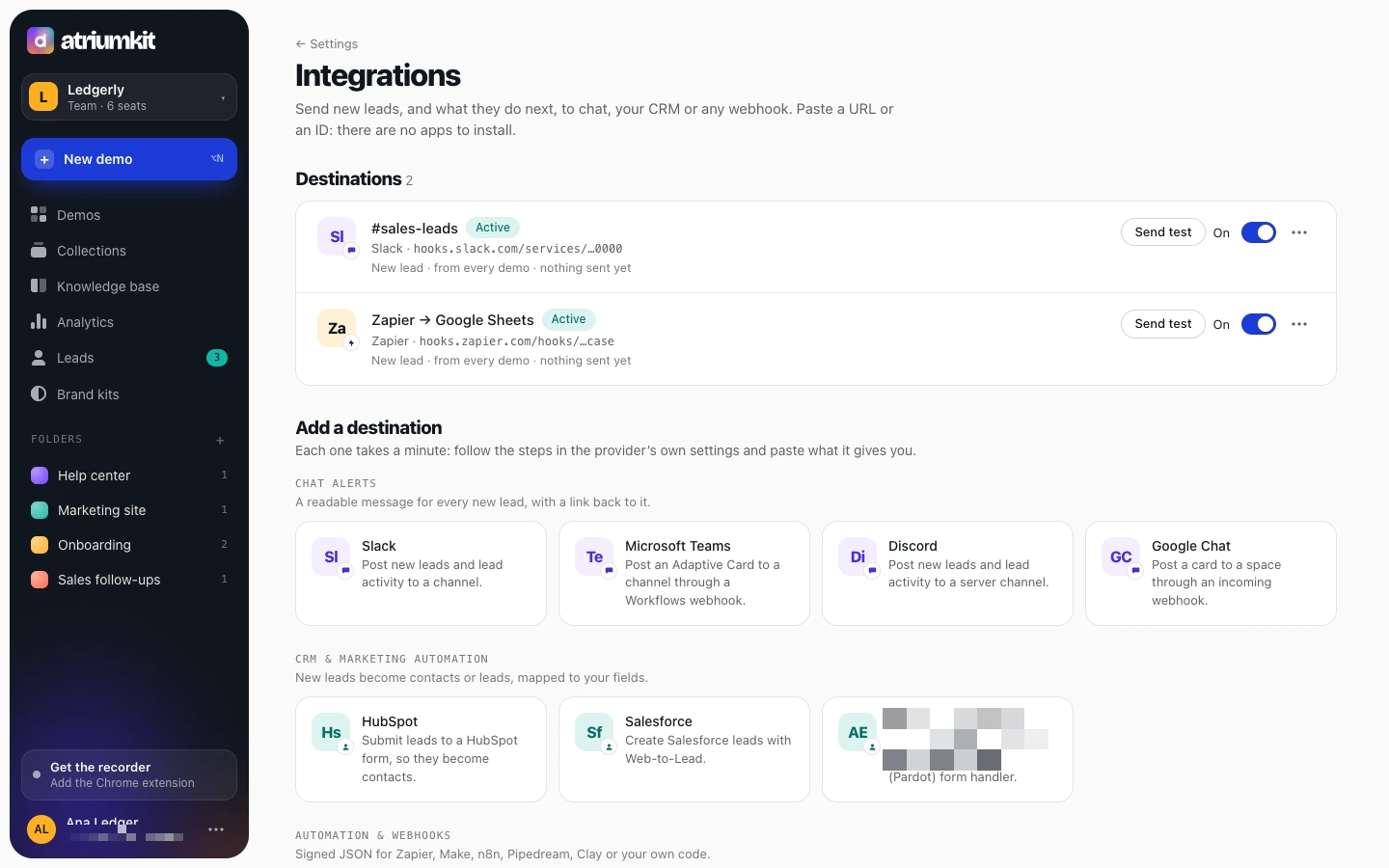
Step 17: Leads go where you work
New leads, and what they do next, go to Slack, Teams, HubSpot, Salesforce, Zapier or any webhook.
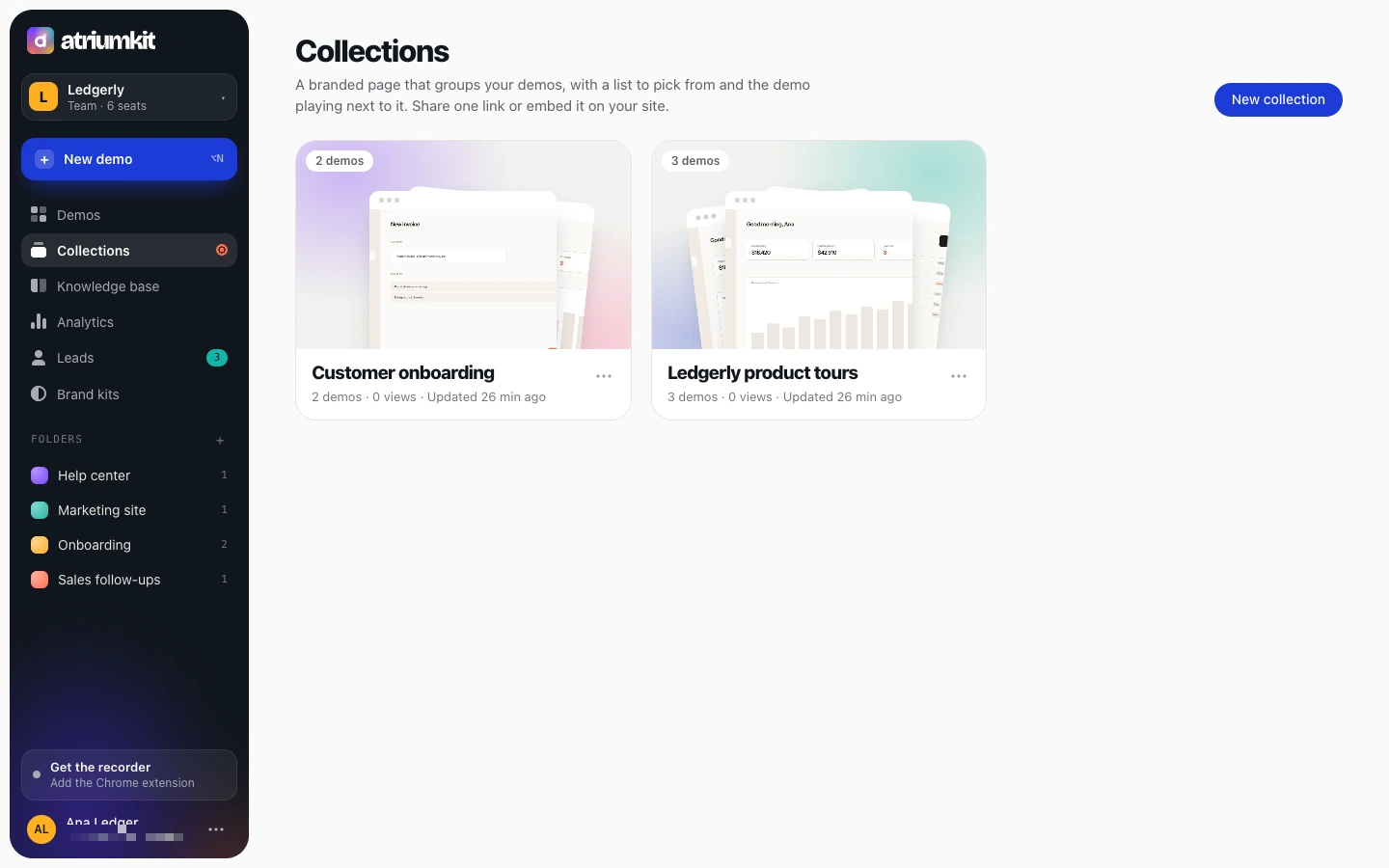
Step 18: Build a demo center
Group demos on one page with sections, links and lead capture. Send the link or embed it.
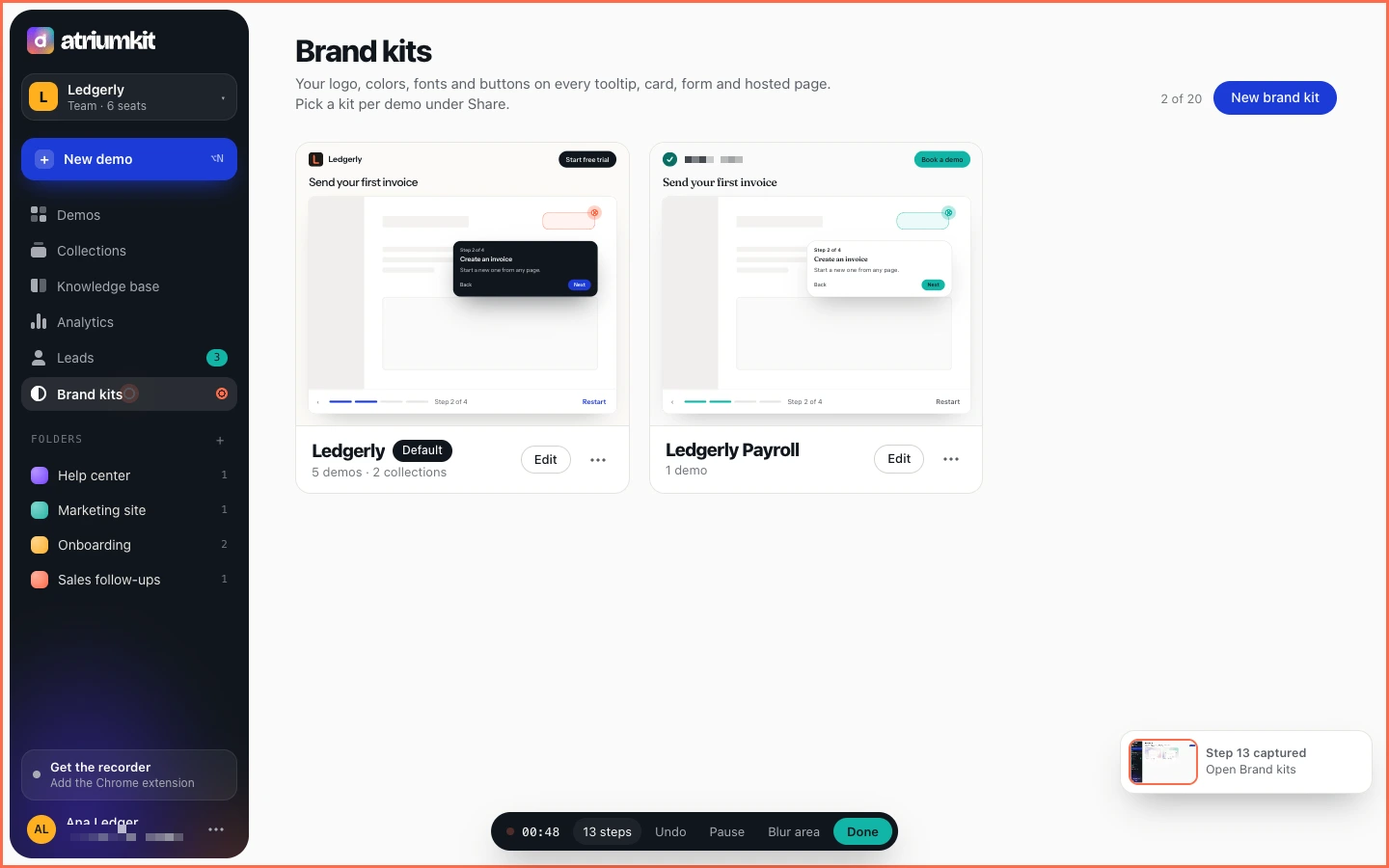
Step 19: On brand, automatically
Your logo, colors, fonts and buttons on every tooltip and page. Import them straight from your website.
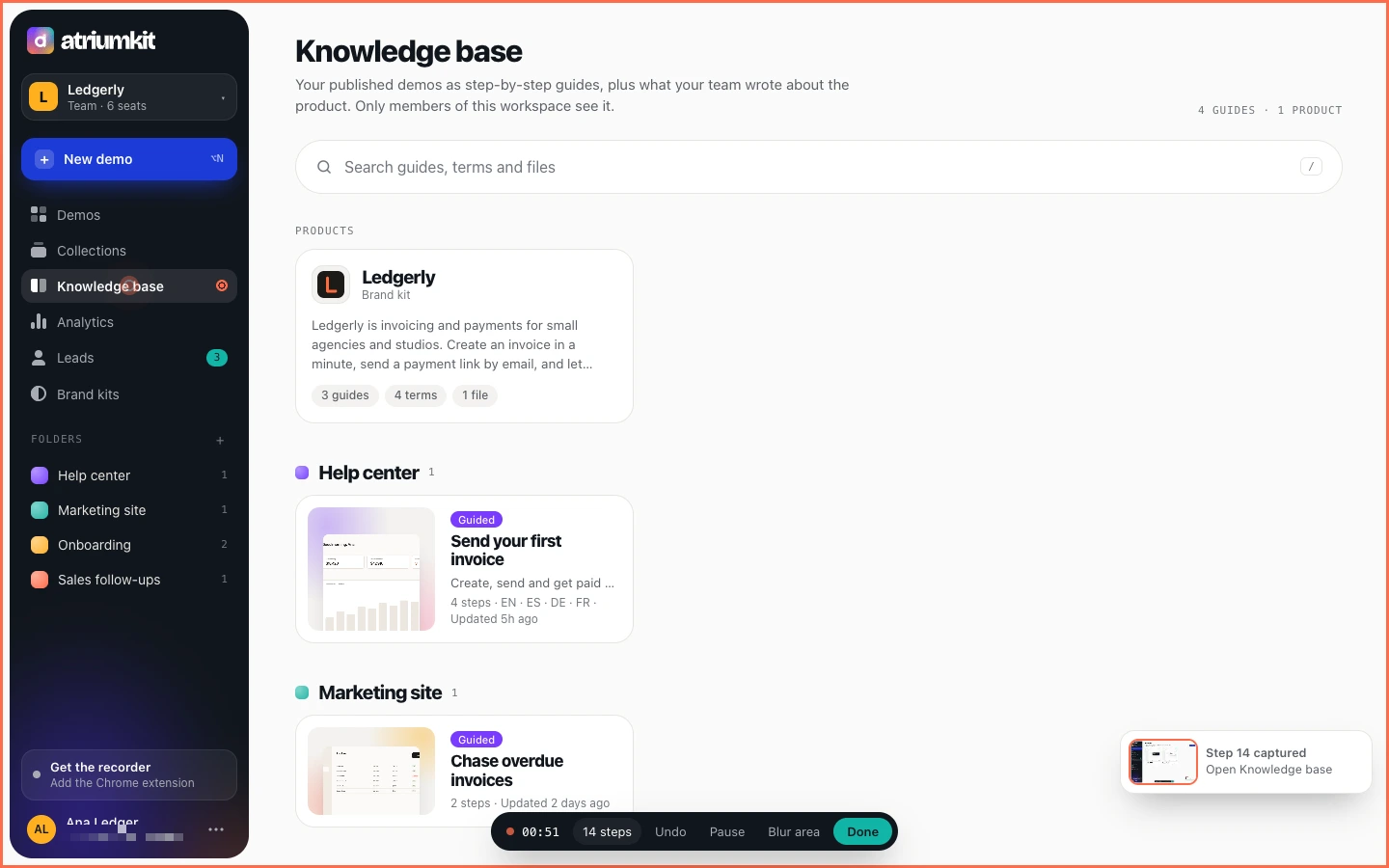
Step 20: A knowledge base that writes itself
Published demos become searchable guides for your team, next to your product notes and files.
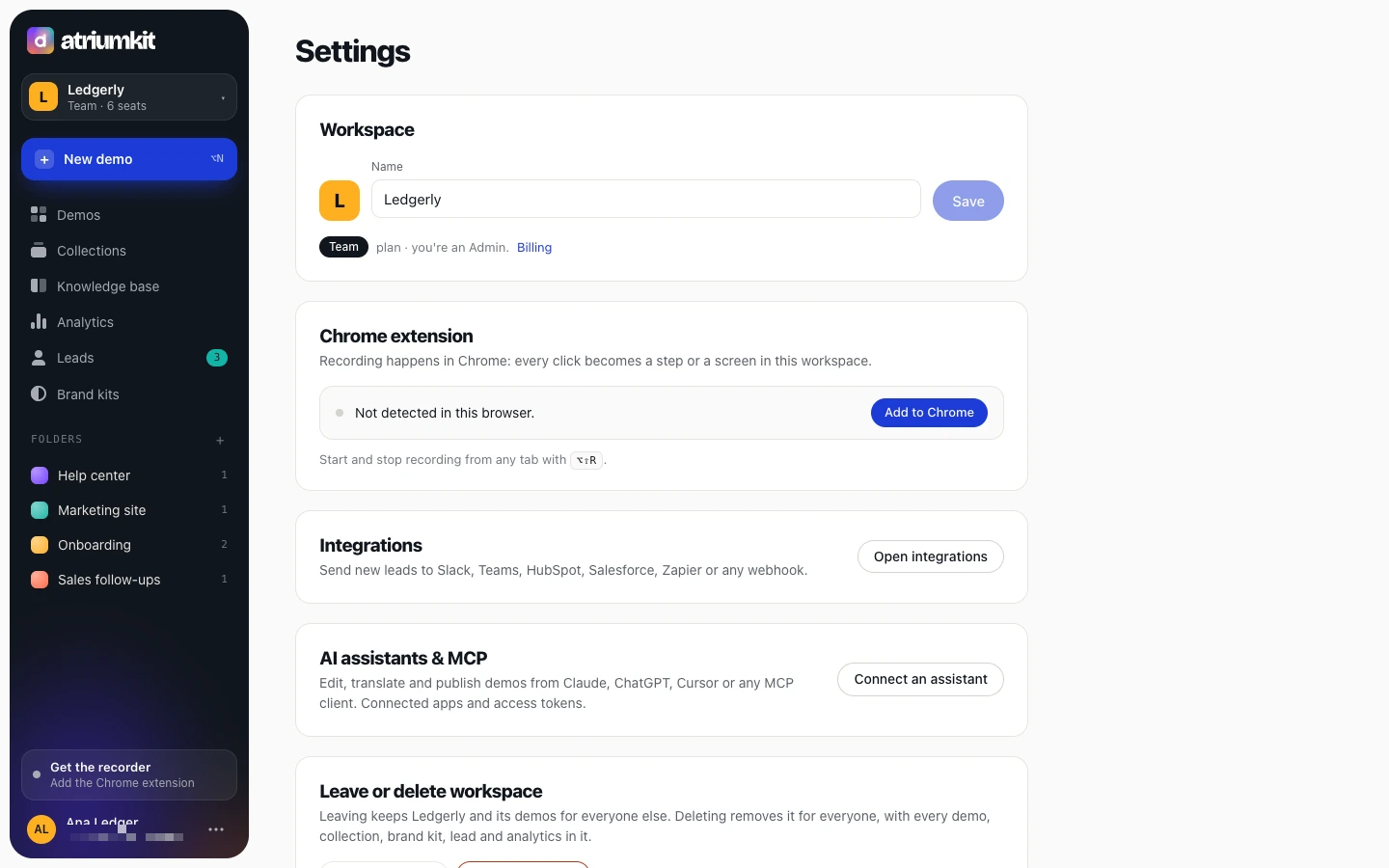
Step 21: Bring your AI assistant
Connect Claude, ChatGPT or Cursor, then ask it to rewrite, translate or publish a demo, or to pull this week’s numbers.
Your turn
Install the Chrome extension and record your first demo in minutes. Free for up to three published demos.
- Start free https://app.atriumkit.com/signup
- Talk to us This path ends here.